PRO · Connect guide
Connect your AI to our data
This guide walks through connecting each major AI app to the thetrading.tools MCP server, with screenshots. Once connected, your AI answers market questions from our live datasets — the market scores, ~90 economic indicators, and the signal studies — with dates and sources instead of stale training data.
https://www.thetrading.tools/api/mcp/mcp?key=ttk_YOUR_KEYClaude (claude.ai)
Custom connectors work on every Claude plan — Free, Pro, Max, Team and Enterprise — in the browser at claude.ai (Free accounts are limited to one custom connector).
Add the connector
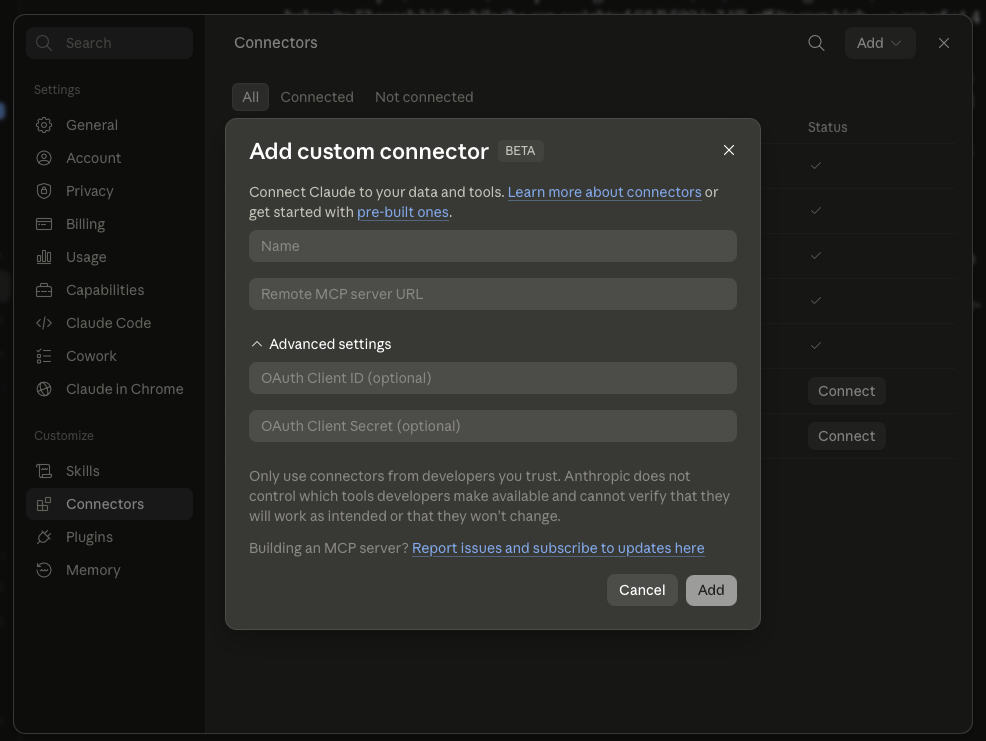
Open Settings → Connectors and click Add custom connector. Name it thetradingtools, paste your personal URL into Remote MCP server URL, and click Add. Leave the OAuth fields under Advanced settings empty — the key inside your URL is the authentication.
Approve it once
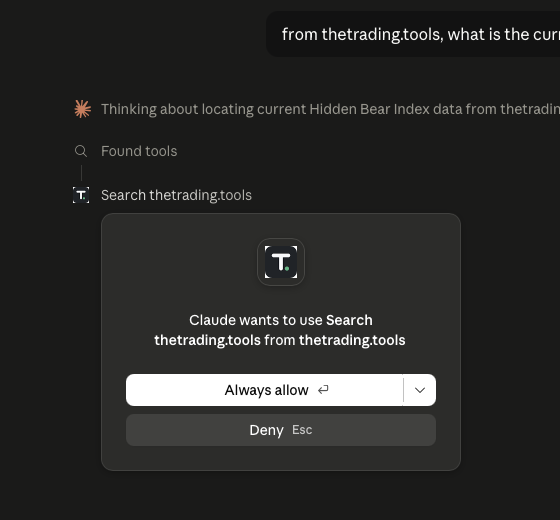
Start a new chat and ask a market question. The first time Claude reaches for one of our tools it asks permission — choose Always allow so future questions run without interruptions. This is a standard Claude safety prompt for any new connector.
Ask, and get sourced answers
That's the whole setup. Claude now pulls our live readings on demand — here it answers "what is the current Hidden Bear Index value?" with the as-of date, the exact readings, the regime label, and the historical base rates, each claim tagged with a thetrading source chip:
ChatGPT
Custom MCP connectors in ChatGPT are available on paid plans (Plus, Pro, Business, Enterprise, Education) with Developer mode. If step 2 shows no create option, double-check that the Developer mode toggle in Security and login is on, then reload — availability can lag the toggle.
- 1
In the browser, open Settings → Security and login, scroll to Developer mode and switch it on. The "elevated risk" notice is OpenAI's standard warning for all unverified connectors.
- 2
Go to Settings → Plugins and create a new developer-mode app: name it thetradingtools, paste the same personal URL, and set authentication to None (the key in the URL authenticates).
- 3
In a new chat, enable the connector from the tools menu and ask your question.
Claude Code, Cursor & other clients
Any client that speaks remote MCP works — use the bearer-header form:
# Claude Code
claude mcp add thetradingtools --transport http https://www.thetrading.tools/api/mcp/mcp --header "Authorization: Bearer ttk_YOUR_KEY"
# Cursor / any JSON-config client
{ "mcpServers": { "thetradingtools": {
    "url": "https://www.thetrading.tools/api/mcp/mcp",
    "headers": { "Authorization": "Bearer ttk_YOUR_KEY" } } } }
What to ask it
- • "What are the market scores right now, per thetrading.tools?"
- • "How do current existing home sales compare to 2008?"
- • "Which SPY signals are firing, and what happened historically after them?"
- • "What does thetrading.tools track about market breadth?"
Every answer carries an as-of date and links back to the page the reading comes from, so you can verify any number against the live chart.
Troubleshooting
"Unauthorized" or the connector fails to add: check the URL is complete (including ?key=ttk_...) and your subscription is active in your account. A freshly generated key can take up to a minute to activate.
Regenerated your key? Update the URL in every client — the old key stops working within a few minutes.
Stale numbers? Data refreshes with every daily pipeline run after the market close; economic indicators update on their official release calendars.